
Prompting 101 using Veda AI
Hey! We’ve put together a collection of tips, techniques, and kind of prompts to help you get the best results from Veda AI. This guide draws from both our team’s hands-on experience and the insights generously shared by our community.
What is Veda AI and how does this help?
Veda AI is your intelligent co-pilot within DronaHQ’s low-code app development platform that turns your ideas, whether in plain English or a design mockup, into secure, scalable apps your engineers actually trust. You can also check out our thorough documentation on using Veda AI.
Veda AI leverages DronaHQ’s library of pre-built UI components, your data or API integrations, and action blocks to create a fully functioning apps that you can edit visually or open in your favourite code editors for easy bulk changes.
Basically, it’s like starting from step 10 instead of step 1.
Heads up, this is just Part 1! We’ve got more coming soon to help you speed up your app-building journey.
What to expect:
Let’s quickly go over the use cases, capabilities and prompt strategies that’ll be covered in this prompt guide:
- UI from design files
- UI from text prompts
- UI from prompts + data source
- Binding data
- Replacing components in existing UIs
Why prompts matter in AI app development?
- Prompts are like giving clear instructions to an AI. They should be concise, logical, and specific about what you want as the outcome.
- Finding the right balance is key – being too vague gives unclear results, while being too detailed can limit creativity. The best prompts show clear intent but leave space for flexibility.
- VedaAI goes a step further – it doesn’t just read your prompt. It understands the intent behind it, using internal data, user roles, and app logic to generate accurate, enterprise-ready results.
Different prompting techniques using VedaAI
1. Prompts to UI
With Veda AI, you can build complete UIs just by describing them in plain English. For example, a simple prompt like “Build a CRM platform” or a detailed one like “Create a CRM App to manage sales pipeline, client communications, and administrative tasks” will generate the corresponding UI.
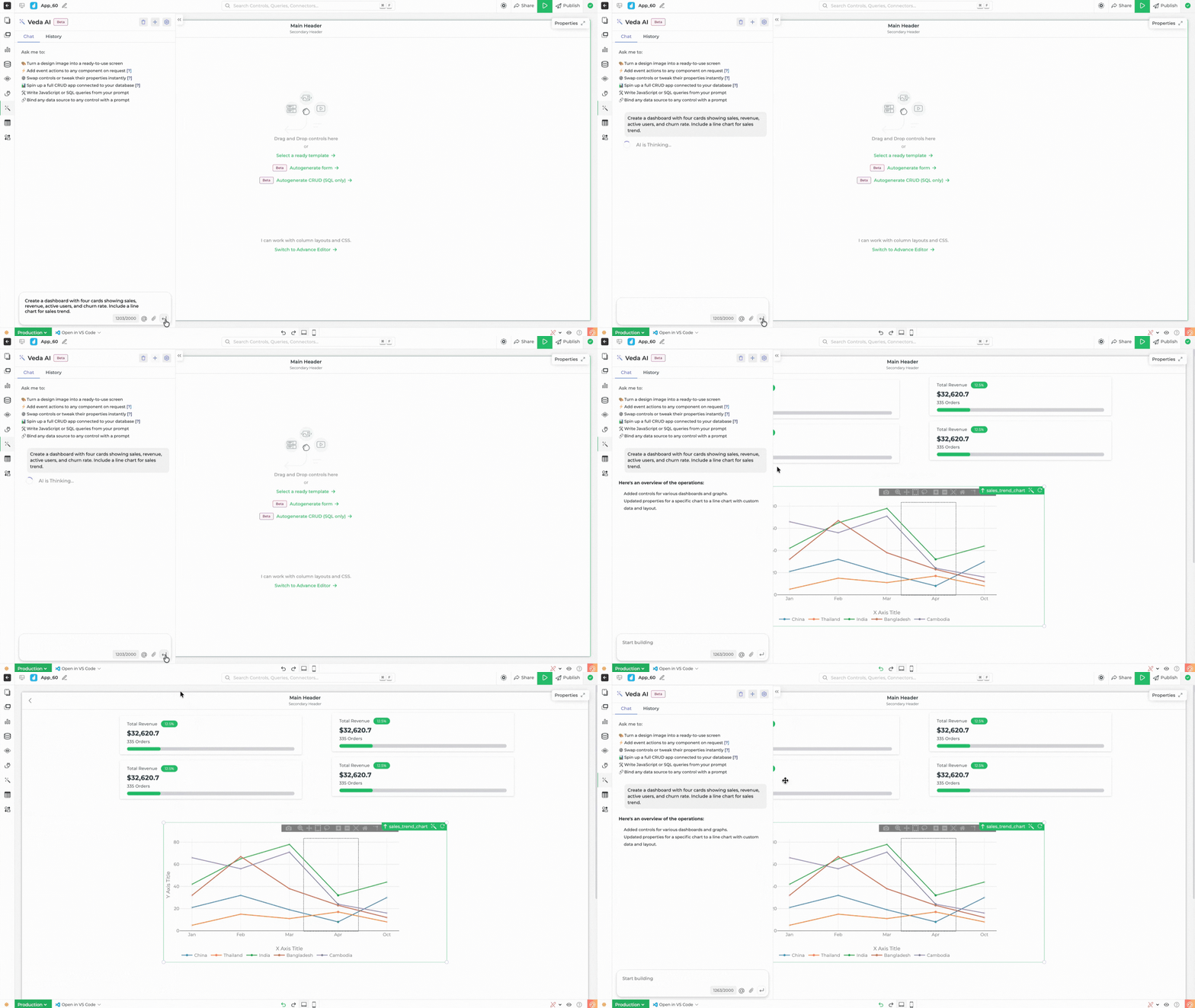
Veda AI processes the prompt, shows a configuration of what it plans to build, and once you approve it, it generates the screens. Depending on the complexity, the process takes a few seconds to a couple of minutes.
Tips:
1. Use visual terms: “card”, “modal”, “chart”, etc.
2. Mention data types or visual priorities (e.g., “highlight churn in red”).
Sample prompt:
“Create a dashboard with four cards showing sales, revenue, active users, and churn rate. Include a line chart for sales trend.”
2. Prompts to UI from a datasource
This is an advanced version of prompt-based UI generation. Here, Veda AI not only builds the UI from your prompt but also connects it directly to your data source.
All you need to do is reference your data source using the @ symbol (e.g., @DemoDB) and mention the table (this is optional. But if the schema is very large having more than 50 tables than you must select the table from the pop over) or dataset you’d like to use. Veda AI automatically connects the relevant controls–like tables, dropdowns, forms, or charts–to your data, without any manual binding.
Note: App creation with Connector will ask user approval listing detailed app specs in an BRD, which can be edited, approved or rejected. Once approved, app will be created
Tips:
1. Use the exact name of the data source or table.
2. Mention interactivity (e.g., “include delete and edit actions”).
3. Include specific use cases that you want in your app. For example – Adding customer info.
Sample prompt:
“Build a customer management app using @DemoDB using the Customers table. Include a searchable table, detail view, and edit form.”

3. From design files to UI
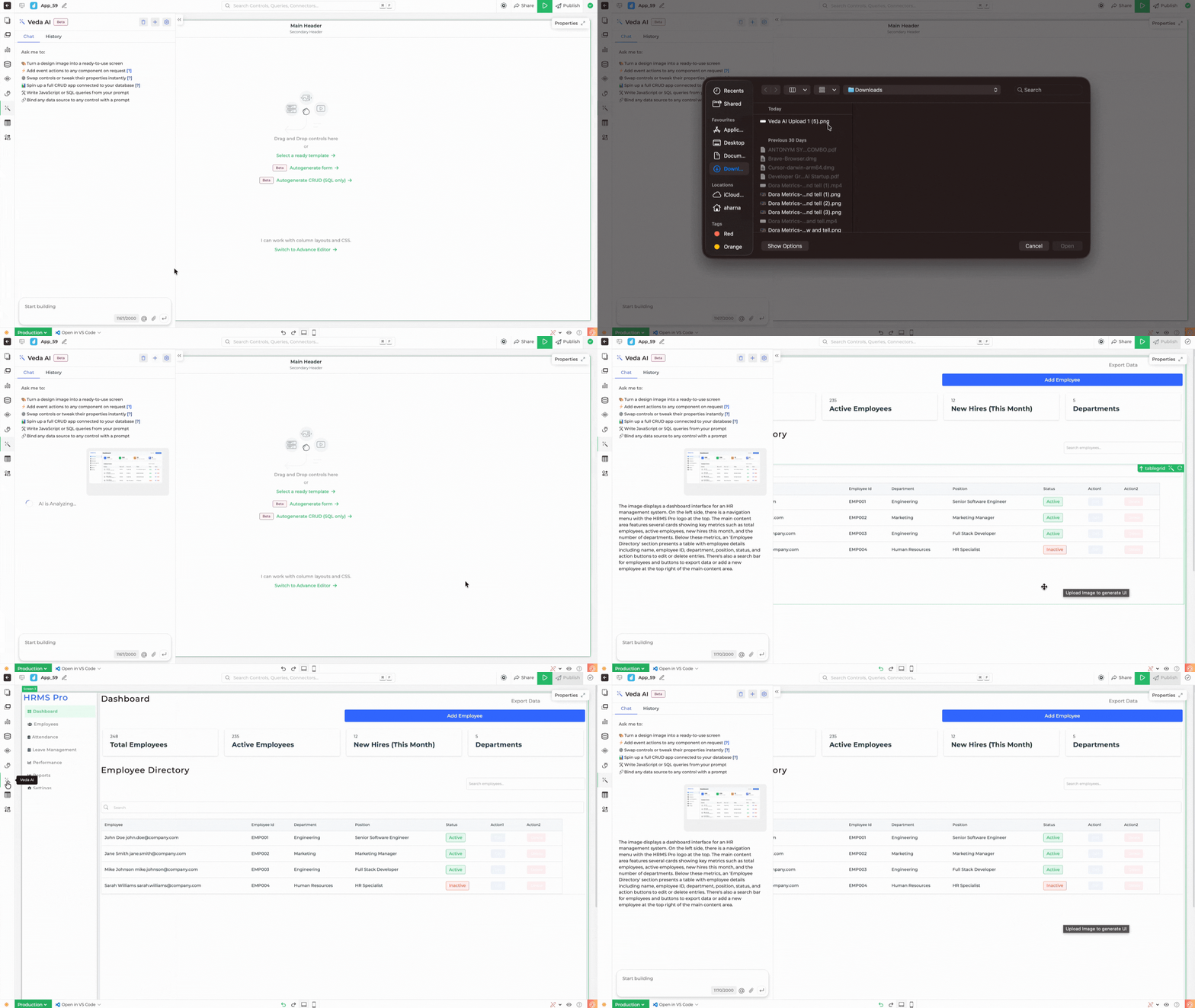
One of the fastest ways to generate UI with Veda AI is by uploading design files, no prompts needed.
Just drop in an image file, screenshot, or even a hand-drawn sketch in formats – jpeg, jpg, png, tif, webp Image formats currently, and Veda AI will create a new screen by interpreting the layout and components. It maps visual elements to the closest matching controls in DronaHQ, generating up to 80% of the UI automatically.
Best results when:
1. The design uses clearly defined components (buttons, inputs, cards, etc.)
2. Layouts are structured and grouped well
⚠️ Overly stylized or minimal designs may reduce accuracy if components are hard to distinguish.
No coding, no prompts, just drop your design and start building.
Tips:
1. Clearly describe layout structure and elements.
2. Use consistent naming in design files.

4. Binding data to existing UI components
Binding data to your UI is quick and intuitive with Veda AI or AI Assist.
If you’re using AI Assist, just hover over any control, like a table or dropdown, and click the AI icon on the top left. Then, type your prompt, such as:
AI Assist will connect the control to the specified data source automatically.
Tips:
1. Identify UI elements by name.
2. Be explicit with data mapping.
Sample prompt:
“Get all customer info from @DemoDB customer table.”Atlernate way:
If you’re using Veda AI, include the control name in your prompt using {{control}}, and bind it to your connector using @.
For example: “Bind {{CustomerTable}} to @DemoDB customer table.”
5. Replacing components via prompts
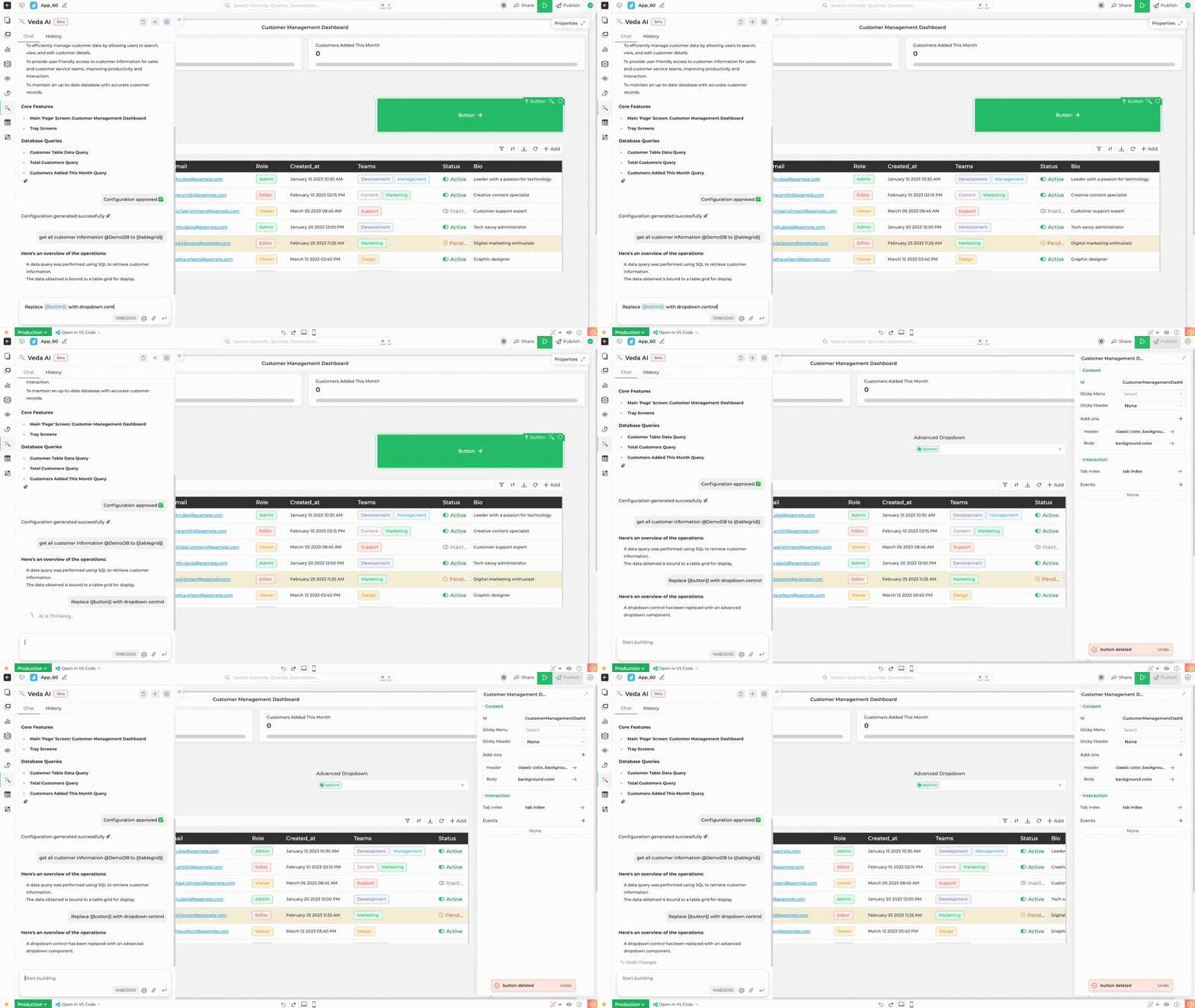
This is a no brainer one. It basically swaps or upgrade UI components using prompts.
Tips:
1. Refer to component names.
2. Indicate the reason or goal for the replacement (e.g., “improve UX”).
Sample prompt:
“Replace {{controlname}] with dropdown control and initialize it with list of status from status table in @CustomerDB“
Prompt crafting tips & best practices.
Be specific with layout, functionality, and data.
Use UI/UX terms familiar to Veda AI.
Break down complex UI into smaller, promptable chunks.
Mention interaction logic (e.g., “onClick”, “when form is submitted”).
Dive deeper by joining our weekly Veda AI workshops
Related Articles